
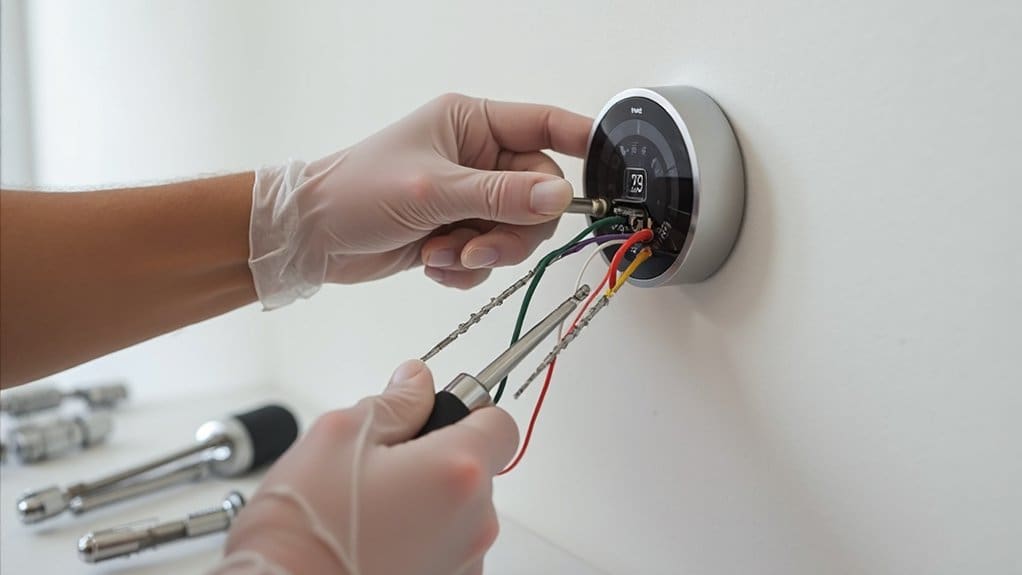
To install your Nest thermostat, first verify HVAC compatibility using Google’s checker and turn off power at the circuit breaker. Wait 30 minutes, then photograph your old thermostat’s wires before labeling each one. Remove the old unit, mount the Nest base plate using its built-in level, and connect the labeled wires to corresponding terminals. Attach the display, configure Wi-Fi settings, and optimize energy-saving features for complete smart home integration.
Key Takeaways
- Check HVAC system compatibility using Google’s tool and verify existing thermostat voltage before purchasing Nest Thermostat.
- Turn off circuit breaker and furnace power switch, then wait 30 minutes for electrical discharge before installation.
- Photograph current wiring, label each wire with corresponding terminal letters, and remove old thermostat carefully.
- Thread labeled wires through Nest base plate, use built-in level for alignment, and secure mounting screws.
- Connect to Wi-Fi, select equipment type, create Nest account, and configure initial temperature schedules through setup menu.
Verify HVAC System Compatibility and Gather Required Materials
Before diving into the physical installation, you’ll need to verify your HVAC system can work with the Nest Thermostat by using Google’s Compatibility Checker online. This tool evaluates your current setup and identifies potential compatibility issues before you begin.
Check your existing thermostat’s voltage labels carefully. The Nest Thermostat isn’t compatible with high-voltage HVAC systems, so this step prevents costly mistakes. If you’re unsure about compatibility or feel uncomfortable with the installation process, contact HelloTech for professional assistance. Improper installation can damage your HVAC system.
Turn off your HVAC system completely before starting any work to avoid safety hazards.
Gather these essential materials: your Nest Thermostat unit, a small Philips or flathead screwdriver, network login credentials, Google Home account information, and a smartphone or tablet. Having everything ready streamlines the installation process and certifies you won’t need to pause mid-installation to locate missing items.
Safety Preparations and Power Disconnection
Three critical safety steps must occur before you touch any wiring in your thermostat installation. These precautions protect both you and your HVAC equipment from potential damage or injury during the process.
Essential Safety Steps:
- Turn off power at the circuit breaker – Locate your HVAC system’s dedicated breaker and switch it to the OFF position. This cuts electrical power to your heating and cooling system completely.
- Switch off your furnace’s power switch – Find the wall switch near your furnace (usually in a gray box) and turn it off. This provides an additional layer of protection.
- Wait 30 minutes before proceeding – Allow time for any residual electrical charge to dissipate from the system.
After completing these steps, guarantee your system remains powered down throughout the installation. Test your old thermostat to confirm it’s non-responsive before removing any wires. This verification assures safe working conditions.
Remove Your Current Thermostat and Label Wires
Your old thermostat’s faceplate conceals the wire connections that’ll transfer to your new Nest device. Before disconnecting anything, take a picture of the existing wire configuration with your smartphone. This visual reference proves invaluable if you need to troubleshoot later.
Remove your current thermostat’s faceplate by gently pulling it away from the wall mount or unscrewing it, depending on your model. You’ll see colored wires connected to labeled terminals like R, W, Y, G, and C.
Using masking tape or the wire labels included with your Nest, mark each wire with its corresponding terminal letter. Write clearly – you’ll rely on these labels during installation. Don’t remove wires from terminals yet.
Examine the old thermostat’s mounting plate next. Note any screws securing it to the wall. Some plates simply lift off, while others require screw removal. Keep all hardware in a safe place for potential future use.
Mount the Nest Thermostat Base Plate
With your wires properly labeled and the old thermostat removed, you’ll now position the Nest base plate on your wall. Before mounting, guarantee the wall surface is clean and level for ideal installation.
First, thread your labeled wires through the center opening of the base plate. This prevents wire damage during the mounting process. Use the built-in level on the base plate to guarantee proper alignment before securing it to the wall.
Follow this mounting sequence for best results:
- Position the top first – Attach the upper portion of the base plate before securing the bottom to protect your air conditioning and heating wires
- Check alignment – Verify the thermostat base plate remains level using the integrated bubble level
- Secure gently – Tighten screws just enough to hold firmly without over-tightening, which could crack the base plate or damage wall anchors
Your base plate should now be securely mounted and ready for wire connections.
Connect Wires and Attach the Display Unit
Now that the base plate is securely mounted, you’ll connect each labeled wire to its corresponding terminal on the Nest thermostat. Match each wire’s label to the corresponding letter on the base plate terminals. Push each wire going into its designated slot until you hear a click, ensuring a secure connection.
Double-check all connections before proceeding. The R wire typically connects to power, while C provides common power for your smart thermostat. Y controls cooling, W handles heating, and G operates the fan. If you have additional wires like Y2 or W2, connect them to their respective terminals.
Once all wires are connected, align the Nest display unit with the base plate. Gently push the display onto the base until it clicks into place. Use the provided screws if your model requires them for extra security. The display should sit flush against the wall, completing your installation.
Configure Wi-Fi Connection and Initial Setup
After completing the physical installation, turn on your Nest thermostat to begin the setup process. The display will guide you through essential configuration steps to get your smart thermostat operational.
Follow these key setup phases:
- Wi-Fi Network Connection – Select your home’s Wi-Fi network from the available options and enter your password. The thermostat needs internet access for remote control and automatic updates.
- System Configuration – Choose your heating and cooling equipment type from the menu options. Make sure your system settings match your HVAC equipment to guarantee proper operation and prevent damage.
- Account and Preferences Setup – Create your Nest account, input your location for weather data, and set initial temperature schedules that match your household’s comfort preferences.
These configurations enable energy-saving features, ultimately saving money on utility bills. If you encounter technical difficulties during setup, call us for professional assistance to ensure optimal thermostat performance.
Optimize Settings for Maximum Energy Savings and Smart Home Integration
Several advanced settings can maximize your Nest thermostat’s energy-saving potential and seamlessly integrate it with your smart home ecosystem. First, enable the Energy Savings feature to reduce heating and cooling costs by up to 15% annually. Configure your cooling system settings to match your HVAC specifications for ideal performance.
Set up occupancy-based automation by connecting compatible smart home devices. This creates routines that adjust temperatures when rooms are empty or occupied. Take a few minutes to make sure your schedule preferences align with your household’s patterns – the thermostat’s algorithms will learn these habits over time.
Access detailed energy reports through the Nest app to identify optimization opportunities. Consider professional installation services if you’re integrating multiple smart devices for complex automation setups.
Finally, research utility company rebates for smart thermostat installations to offset energy costs. These incentives, combined with automated temperature adjustments, deliver maximum efficiency and comfort.
Frequently Asked Questions
How Do I Set up My Nest Thermostat?
You’ll set up your nest thermostat by following on-screen prompts to connect Wi-Fi, adjusting temperature settings, customizing thermostat preferences for heating/cooling schedules, and monitoring energy usage through the app’s detailed reports.
Do You Need a Professional to Install a Nest Thermostat?
You don’t always need professionals—many homeowners handle DIY installation successfully. However, compatibility requirements with high-voltage systems and professional installation benefits like warranties make expert help worthwhile if you’re uncertain about electrical work.
What Wires Go Where on a Google Nest Thermostat?
You’ll match wire color combinations to labeled terminals: red wire (Rh/Rc) for power source requirements, white (W1) for heat, yellow (Y1) for cooling. Check thermostat compatibility first, as some systems need additional wires.
Why Is the Nest Thermostat Being Discontinued?
Like a gardener pruning old branches, Google’s discontinuing the Nest Learning Thermostat due to regulatory changes, product consolidation, and customer feedback. You’ll find they’re focusing on newer models with enhanced smart home integration capabilities.
Conclusion
You’ve successfully transformed your home’s climate control from stone-age manual adjustments to cutting-edge automation. Your Nest thermostat’s now learning your schedule, optimizing energy usage, and integrating seamlessly with your smart home ecosystem. You’ll notice reduced utility bills within weeks as the system adapts to your preferences. Don’t forget to explore the mobile app’s advanced features and set up geofencing for maximum efficiency when you’re away from home.